

Grouping functionality will allow you to unite items into groups by certain criteria or common category.
This topic explains how to use grouping functionality, possible configuration and briefly explanation of the main Grouping widget properties.
This topic contains the following sections:
The igCombo supports Grouping functionality that will enable the user to group together related items. This feature is included in version 15.2. The picture below demonstrate igCombo in which the items are grouped by car type in ascending order.
Note: By default the sort order is set to be
ascending
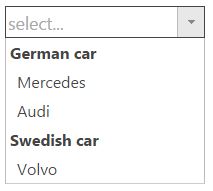
In order to enable combo grouping key property should be set. This property represents the name of column by which the records to be grouped. When combo is initialized all items will be grouped by that key in ascending order. Sort direction can be changed by using dir property as swhown in the code snippet below:
In JavaScript:
$(".selector").igCombo({
    dataSource: data,
    textKey: 'name',
    valueKey: 'id',
    closeDropDownOnBlur: false,
    grouping: {
        key: 'carType',
        dir: 'desc'
    }
});
In ASPX:
@(Html.Infragistics().ComboFor(item => item.ID)
        .Width("400px")
        .DataSourceUrl(Url.Action("ComboDataLocation"))
        .ValueKey("ID")
        .TextKey("CarName")
        .CompactData(false)
        .Grouping(gr =>
        {
            gr.Key("Country");
            gr.Dir(ComboGroupingDirection.Desc);
        })
        .DataBind()
        .Render()
)
Note: When Load On Demand and Grouping are used it is recommended all datasource items to be sorted by the key which is used for grouping.
The following samples provide additional information related to this topic.
View on GitHub